PDF Merger
Combine several PDF files into one document in the order you choose. Combine report attachments, scanned pages or application documents into one file.
Uses · —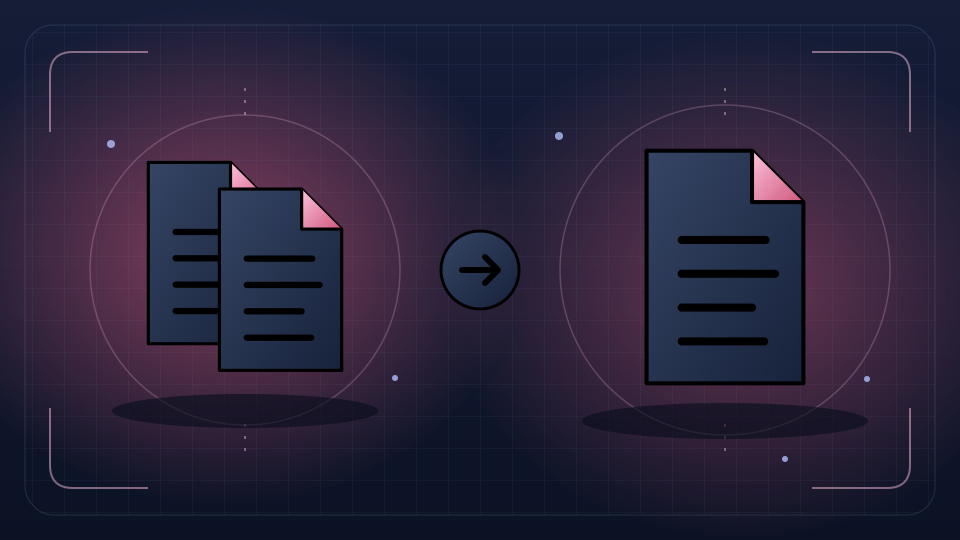
Up to 30 files, 100 MiB total and 500 pages. Encrypted PDFs are unsupported.
Results
Inputs are processed in your browser.
How do I use it?
Add at least two PDFs, use the arrows to arrange them, and download the merged document.
Example
Place a cover page before a report and its appendices.
Tips
- You can combine up to 30 files, 100 MiB in total and 500 pages. Encrypted PDFs are not supported.
- Bookmarks, interactive form fields and digital signatures may not carry over to the merged file.
- Arrange the files before merging: the order in the list is the page order of the new document.
- Name your files with numbers (01-cover, 02-report…) so that the right order is obvious when you add them.
Comparisons
Here files are processed on your device; upload services send them to a remote server.
Local processing is better for confidential documents and works without waiting for uploads.
Merging copies the original pages; printing to PDF re-renders them.
Re-rendering can change text selection, links and image quality, while merging keeps pages untouched.
Digital PDFs contain selectable text; scanned PDFs contain page images.
Both can be merged, but only digital pages stay searchable.
30 files · 100 MiB total · 500 pages
Split very large jobs into two merges and combine the results.
PDF merging guide: order, limits and what is kept
Merging PDFs means copying the pages of several documents into a single new file. It is useful for sending a job application as one attachment, combining a report with its appendices, or collecting scanned receipts for an expense claim.
Start by selecting at least two PDF files. Each file appears in a list with its page count. Use the arrows to put the files in the right order and remove anything you added by mistake. When the order looks right, merge the files and download the result.
The merger copies pages exactly as they are. Text stays selectable, vector graphics stay sharp and images are not recompressed, so there is no quality loss. The file size of the result is roughly the sum of the input files.
Some features live at the document level rather than on the pages. Bookmarks, interactive form fields and digital signatures may not survive merging. If you need a signed document, merge the files first and sign the final PDF afterwards.
Encrypted or password-protected PDFs cannot be opened by the tool. Open them in a PDF reader with the password, save an unlocked copy and use that copy. The limits are 30 files, 100 MiB in total and 500 pages per merge.
Everything happens in your browser, so the documents are never uploaded. This makes the tool suitable for contracts, invoices, medical records and other files you would rather not send to a third-party server.
FAQ
How do I merge PDF files for free?
Select at least two PDF files, arrange them with the up and down arrows, then click Merge PDFs and download the combined document. There is no signup and no watermark.
Are my PDFs uploaded to a server?
No. Merging runs entirely in your browser, so confidential contracts, invoices or IDs never leave your device.
How many files can I combine?
Up to 30 files at a time, with a combined size of 100 MiB and a maximum of 500 pages in the result.
Can I change the order of the files?
Yes. Use the arrows next to each file to move it up or down, or remove a file you added by mistake. The final document follows the list order.
Does merging reduce the quality of my pages?
No. The original pages are copied into the new PDF as they are, so text, vector graphics and images keep their quality.
Why can't I add a password-protected PDF?
Encrypted PDFs cannot be read by the merger. Open the file in a PDF reader with its password, save an unlocked copy and add that copy instead.
Will bookmarks, forms and signatures be kept?
Not always. Page content is preserved, but document-level features such as bookmarks, interactive form fields and digital signatures may be lost. Sign the merged file again if a signature is required.
Can I merge scanned documents?
Yes. Scanned PDFs are merged like any other PDF. The scanned pages remain images; text inside them does not become searchable.
Related tools
Embed this tool on your site
<iframe src="https://pinfox.tech/en/tools/general/pdf-merger/?embed=1" width="100%" height="720" loading="lazy" style="border:0;border-radius:12px;overflow:hidden" title="PDF Merger - Pinfox"></iframe>