Video to Audio Converter
Extract audio from MP4, MOV, MKV and WebM video as MP3, WAV, M4A, OGG, WebM or FLAC.
Uses · —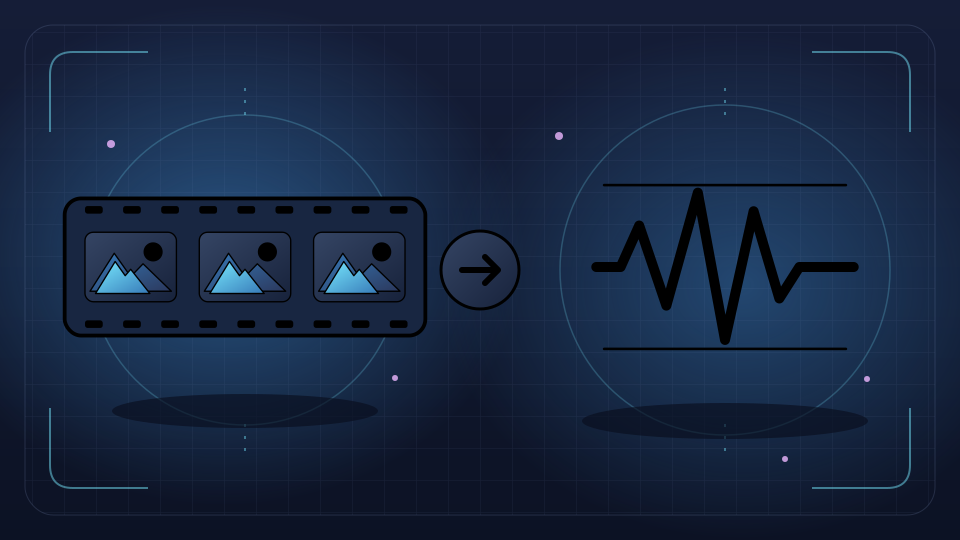
The browser downloads the audio engine on first use. Your media stays on your device.
Results
The browser downloads the audio engine on first use. Your media stays on your device.
How does it work?
Choose a video and output format. The first audio track is converted to a separate file.
Example
Extract an MP3 from a recorded interview to share only the audio.
What should I check?
- The video must contain an audio track. If it has several, the first track is used.
- Choose MP3 for sharing, M4A for Apple devices and WAV or FLAC when you plan to edit the audio.
- Encoding does not play the video in real time, but large files can take longer on slower phones and laptops.
- The audio engine is downloaded on first use; later extractions start faster.
Comparisons
Small files, plays everywhere.
Best for interviews, lectures and music you want to share.
Often the audio codec already used inside MP4 videos.
Good quality at small sizes; native on Apple devices.
Lossless copies of the decoded audio.
Best for editing in audio software or transcription tools.
An audio-only file is usually 5 to 20 times smaller than the video.
Easier to send by message or upload to podcast platforms.
How to extract audio from video files
Extracting audio turns the sound of a video into its own file. It is handy for keeping only the speech from a recorded interview or lecture, saving music from your own clips, preparing podcast episodes or sending a voice recording without a heavy video.
Choose a video file such as MP4, MOV, MKV or WebM, select the output format and start the extraction. The first audio track is converted, and you can listen to the preview before downloading.
Pick the format by purpose. MP3 is the most compatible for sharing. M4A keeps good quality at small sizes and plays natively on Apple devices. WAV and FLAC are lossless and work best when you plan to edit, cut or transcribe the audio.
The source must contain an audio track. Screen recordings without a microphone or muted clips cannot produce sound. If a video has several audio tracks, for example different languages, the first one is used.
Processing does not need real-time playback, so a one-hour recording does not take an hour. Large files can still take a while on slower devices, and the audio engine is downloaded the first time you use the tool.
The file limit is 100 MiB and everything happens in your browser, so private recordings are never uploaded. Only convert videos you own or have the right to use.
FAQ
How do I extract audio from a video?
Choose a video file, select the audio format and extract. The first audio track is converted into a separate file you can preview and download.
Which video formats are supported?
Common formats such as MP4, MOV, MKV and WebM. The output can be MP3, WAV, M4A, OGG, WebM or FLAC.
How do I convert MP4 to MP3?
Select the MP4 file, choose MP3 as the output format and a bitrate, then extract. Keep 192 kbps or higher for music.
Is the audio quality reduced?
Saving to a lossy format such as MP3 re-encodes the sound. Choose WAV or FLAC if you need to keep the audio exactly as it is in the video.
What is the file limit?
Video files up to 100 MiB.
Are my videos uploaded?
No. The audio engine is downloaded to your browser on first use and your video is processed on your device.
Why do I get an error?
Most often the video has no audio track or uses an unusual codec. Check that the video plays with sound in a media player.
Can I download audio from YouTube or other sites?
No. The tool converts video files that are already on your device. Only use media you own or have permission to use.
Related tools
Embed this tool on your site
<iframe src="https://pinfox.tech/en/tools/general/video-to-audio-converter/?embed=1" width="100%" height="720" loading="lazy" style="border:0;border-radius:12px;overflow:hidden" title="Video to Audio Converter - Pinfox"></iframe>