HTML Code Viewer
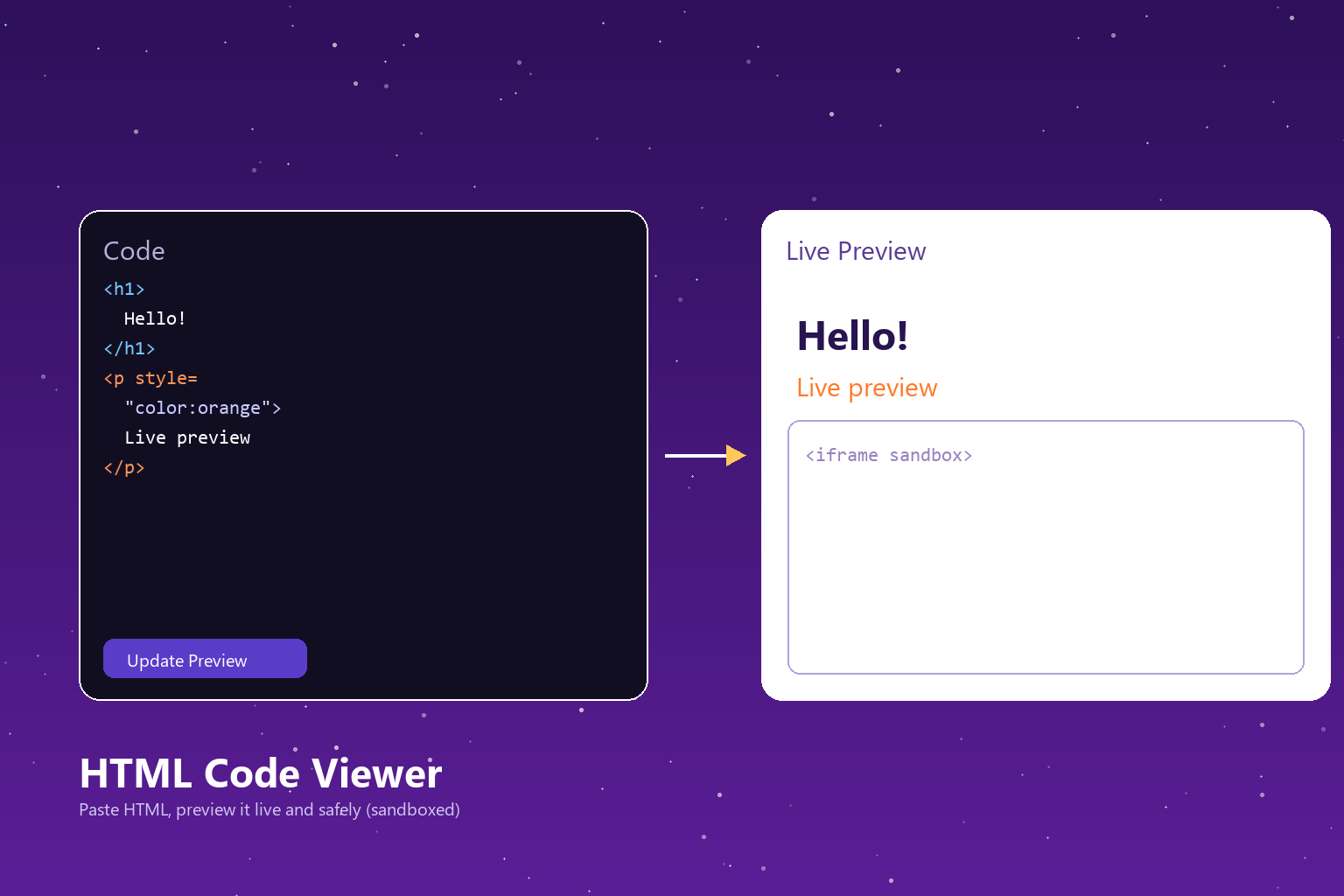
Paste your HTML code into the box on the left, click 'Update Preview,' and see the result instantly on the right. The preview runs inside an isolated (sandboxed) frame, so your code can never access the rest of your site or your cookies.
How should I evaluate the preview result?
The preview in the right panel is a close representation of how your code would appear in a browser. If something looks unexpected, check that your HTML tags are properly closed.
How does the preview work?
The HTML you paste is placed inside an iframe isolated with the 'sandbox' attribute. This isolation allows the code to run while blocking its access to the rest of the site, cookies, or other tabs — meaning even untrusted code can be safely tested.
Formula
- You paste your HTML (which can also include CSS/JavaScript) into the code box.
- When you click 'Update Preview,' the code is passed to an isolated iframe.
- The iframe renders the code in an environment isolated from the main page, thanks to the 'sandbox' attribute.
- The result is displayed visually in the preview area on the right.
- Edit the code and click the button again to update the preview.
Example usage
When you paste an embed iframe snippet or a simple HTML/CSS experiment, the result appears instantly in the right panel, so you can check how it will look before adding it to your live site.
Tips for HTML previewing
- Test how an embed code (like an iframe widget) will look on your site before publishing it here.
- The preview doesn't update automatically on every change — remember to click 'Update Preview' after editing your code.
- Because the preview area is isolated, any scripts in your code cannot affect or read the rest of your page.
Comparisons
Renders correctly instantly
Basic elements like headings, paragraphs, and buttons work without issue.
Can be tested before publishing
Ideal for checking a widget's size and appearance.
Runs, but isolated
Scripts cannot reach outside the preview area or the main page.
HTML preview tool guide
During web development, seeing how a piece of HTML or an embed code will look on the real site usually means adding the code to a live environment first — which can waste time and, in the case of faulty code, break the site's appearance. This tool eliminates that risk by letting you test the code in an isolated environment.
At the core of this tool is the 'sandbox' iframe feature offered by browsers. This feature fully isolates the content inside an iframe outside a specific set of permissions; by default, no capability is granted beyond running scripts — no access to the parent page, no form submission, no opening new windows.
This design choice is deliberate: it offers a space where users can test even code they don't trust, while protecting the actual site (and the user's cookies and session data) in the process. Many professional code-sharing platforms (like CodePen-style tools) follow the same isolation principle.
The preview doesn't refresh automatically with every code change; instead, it's triggered manually with the 'Update Preview' button. This keeps performance smooth and gives the user control over when code actually runs, rather than executing it accidentally before it's finished.
This tool is useful for testing embed widgets, quickly trying out an HTML/CSS idea, safely inspecting code shared in a bug report, or simply seeing how HTML renders as part of a learning process.
FAQ
Is the code I paste sent to a server?
No. The code is processed only in your browser for the preview; it's never sent to or saved on any server.
Why is the preview area restricted with 'sandbox'?
It's a security measure to prevent the code you paste — especially if it's from an untrusted source — from accessing the rest of your site, your cookies, or your other data.
Can I test code that includes JavaScript?
Yes, the preview area allows scripts to run, but since it's isolated, those scripts can't interact with your main page.
Why doesn't the preview update automatically?
Instead of re-rendering on every keystroke, the 'Update Preview' button puts you in control — this also keeps performance smooth with large blocks of code.
Can I use this tool to test embed codes?
Yes, one of the most common uses of this tool is checking whether an iframe embed code looks correct before adding it to your site.
Is there a sample code available?
Yes, a simple example HTML snippet is preloaded in the code area when the page opens — you can delete it and paste your own code.
Will the design I see in the preview look exactly the same on my real site?
Usually yes, but since the preview area has its own style reset, code that interacts with your site's global CSS may show small visual differences.
Is it safe to paste code from an untrusted source here?
The sandbox isolation prevents the code from harming your site, but we still recommend carefully reviewing code from sources you don't recognize.
Related tools
Embed this tool on your site
<iframe src="https://pinfox.tech/en/tools/general/html-code-viewer/?embed=1" width="100%" height="720" loading="lazy" style="border:0;border-radius:12px;overflow:hidden" title="HTML Code Viewer: Live Preview - Pinfox"></iframe>